

The real trick to organizing your notes isn't about finding the perfect folder structure; it's about building a genuine system. This means ditching the digital equivalent of a messy junk drawer and creating a central hub for everything. I'll show you how using smart databases to link your thoughts and setting up a regular review habit can finally make your notes clean, connected, and genuinely useful.
Taming the Digital Chaos with a Modern System

If you're constantly swimming in a sea of scattered documents, random thoughts on sticky notes, and half-finished outlines, you're in good company. For years, my own setup was a chaotic jumble of Google Docs, Apple Notes, and physical notebooks. The problem was never a lack of effort—it was the complete absence of a reliable framework.
My personal breaking point came during my sophomore year when I was preparing for midterms. I knew I had taken detailed notes on a critical concept for my economics class, but I couldn't remember if they were in a Google Doc, scrawled in a notebook, or saved as a note on my phone. After wasting 20 minutes frantically searching, I found them, but the stress and inefficiency were a huge wake-up call. That’s when I got serious about figuring out how to organize my notes with a method that would work for me, not against me.
This guide will walk you through a modern approach that swaps out those messy, static folders for a dynamic, centralized system. Think of it less like digital storage and more like building a "second brain" that actively helps you learn, create, and connect ideas in a meaningful way.
The Core Principles of an Effective Note Organization System
Before diving into the "how," it's important to understand the "why." A good system isn't about the specific app you use, but the principles behind it. I’ve found that the most sustainable systems are built on a few core ideas that prevent them from becoming overwhelming digital landfills.
Here's a breakdown of those foundational concepts:
| Principle | Why It Matters | Actionable Insight |
|---|---|---|
| Central Hub | It eliminates decision fatigue. You have one single place where all incoming information lands, no questions asked. | Do this: Create an "Inbox" page or database in your chosen app. Every new thought, link, or idea goes here first. Don't sort it immediately—just capture it. |
| Structured Databases | Moving beyond basic pages allows you to tag, filter, and connect information in powerful ways that folders can't replicate. | Do this: Instead of a folder called "Meetings," create a database. Add properties like "Date," "Topic," and "Action Items" to make every note instantly sortable. |
| Active Review | A consistent process for sorting and archiving prevents clutter. Your system stays relevant and useful, not stale. | Do this: Block 15 minutes in your calendar every Friday to clear your "Inbox." Move each item to its permanent home or archive it. This simple habit is non-negotiable. |
Ultimately, these principles ensure your system adapts with you. It’s a living, breathing workspace, not just a digital filing cabinet.
Why This Shift Is Happening Now
The move toward better digital organization isn't just a personal preference; it's a massive trend. The global digital note-taking market, valued at around USD 0.91 billion, is on track to hit USD 1.54 billion by 2033. This growth shows just how many people are leaving traditional paper behind for the convenience of synced, accessible digital systems.
This means we need to get smarter about our tools. Instead of just picking an app, we should define the principles of our system first.
My personal rule is simple: if an idea, a task, or a piece of information doesn't have a designated home within 24 hours, it's as good as lost. A central inbox is non-negotiable for me.
Choosing the right platform is key to bringing this system to life. While many excellent options are out there, this guide will focus on Notion because of its incredible flexibility with databases and customization. If you’re still weighing your options, our guide on the best note-taking apps can help you find the perfect match.
The goal here is to build something that feels both intuitive and powerful, freeing up your mental energy to focus on what actually matters. Let's get started by building your mission control.
Building Your Central Hub in Notion
Think of your Notion workspace as an empty workshop. Right now, it's a blank slate, but with a bit of smart organization, it'll become the command center for every project, lecture, and late-night idea you have. The first real step to organizing your notes is to build this central hub—your Dashboard.
This Dashboard isn't just for looks; it’s the single source of truth for your entire system. It's where you'll start your day and where all your information lands before being sorted. Forget those overwhelming, pre-built templates for a minute. We're building this from scratch so it works exactly the way you think.
Setting Up Your Core Databases
The real engine behind Notion is its databases. They aren't like the static folders you're used to. Databases let you tag, filter, and connect your information in ways that give you total control. To get started, we'll create three foundational databases right inside your main Dashboard page.
Just type /database on your new page and choose the "Database - Inline" option.
- Projects Tracker: This is for anything you're working on that has multiple steps. Think "Biology Term Paper," "Summer Internship Hunt," or even "Plan a Weekend Trip."
- Meetings & Lectures Log: A simple, running list of every class, meeting, or webinar you attend. Keeping your notes here organizes them by date and context from the get-go.
- Resource Library: This is your personal digital bookshelf. It's the perfect spot to save articles, research papers, and any other reference material you need to hold onto.
Once you’ve created these, you'll have three empty but functional tables sitting on your Dashboard, ready for you to mold. A clean, well-organized workspace can look something like this, bringing all your key info into one view.
This screenshot shows how you can mix different elements on one page to build a powerful, personalized hub. The key is flexibility—your system can be as simple or as complex as you need it to be.
Customizing Properties That Actually Matter
A database without custom properties is just a list. The real power is unlocked when you add custom properties—or tags—that let you sort and find what you need in seconds.
For instance, my "Projects Tracker" isn't just a title. I’ve added specific properties that give me a bird's-eye view of everything on my plate.
My own "aha!" moment with Notion came when I stopped treating it like a word processor and started using it like a database. For my "Plan a Weekend Trip" project, I added properties for 'Destination,' 'Budget,' and 'Booked?' This turned a simple to-do list into a dynamic planning tool I could sort and view in multiple ways.
Here are some practical properties you can add to your new databases to make them immediately more useful:
For Your Projects Tracker:
- Status (Select): Create options like "Not Started," "In Progress," and "Done." The visual color-coding is surprisingly motivating.
- Deadline (Date): This one's non-negotiable. It lets you view projects on a calendar and sort them by what's due next.
- Priority (Select): I use a simple "High," "Medium," "Low" system. When I'm overwhelmed, I filter my view to show only "High" priority tasks.
For Your Meetings & Lectures Log:
- Course/Topic (Select): Tag each entry with the right class or subject, like "ECON 101" or "Weekly Team Sync."
- Date (Date): Notion can handle this automatically, stamping your note with the date it was created.
- Summary (Text): I add a one-sentence summary to each entry. It's a lifesaver when I'm scanning through months of notes looking for a specific topic.
For Your Resource Library:
- Type (Select): Add useful tags like "Article," "PDF," "Video," or "Book" to easily filter your library.
- Status (Select): I find "To Read," "Reading," and "Finished" essential for managing my consumption queue.
With just these simple tweaks, your databases transform from dumb lists into a smart, interactive system. The next piece of the puzzle is creating a universal capture page—a digital inbox connected to your dashboard—to make sure no idea ever slips through the cracks again.
Designing Your Knowledge Architecture
Once you have your core databases set up, the real fun begins. We’re moving beyond just storing information and into building a true knowledge architecture. A system like this thrives on smart structure, not just on having a place to dump files. This is where we make our notes talk to each other, creating a dynamic web of interconnected ideas.
The magic behind this is all in Notion's relations and rollups. These are the tools that let you connect related information without any manual effort. For instance, instead of having a lecture note floating in isolation, you can link it directly to the specific project it supports. Suddenly, that single note has context, making it a hundred times easier to find when you actually need it. This is what separates a digital filing cabinet from a genuine "second brain."
The P.A.R.A. Method: A Practical Framework
To give this architecture a solid foundation, a lot of folks (myself included) rely on the P.A.R.A. method. It's an acronym for Projects, Areas, Resources, and Archives, and it’s a brilliantly simple way to categorize every piece of information you capture.
- Projects: These are your short-term tasks with a clear finish line. Think "Complete History Essay" or "Plan Q3 Marketing Campaign." They have a beginning and an end.
- Areas: These are the ongoing parts of your life that you need to maintain. "Personal Finances," "Health & Fitness," and "Client Management" are perfect examples. There’s no "done" here, just continuous effort.
- Resources: This is basically your personal library. It’s a collection of topics you’re curious about but aren't tied to a specific project, like "Stoic Philosophy" or "UX Design Principles."
- Archives: This is the holding area for anything that's complete or inactive from the other three categories. It keeps your main workspace tidy without deleting things you might need later.
I’ve personally tweaked P.A.R.A. to fit my own needs. As a student, the line between "Projects" and "Areas" got a little fuzzy. My solution was to use "Projects" for my actionable assignments (e.g., "CHEM-201 Final Paper") and "Areas" for my specific courses ("CHEM-201"). This way, I could link multiple projects to one overarching area. That small adjustment made the whole system click. The key takeaway is that P.A.R.A. is a guide, not a rigid set of rules.
Creating Powerful Filtered Views
After linking and categorizing your notes, you can build powerful, filtered views that turn your Notion dashboard into a command center. Instead of staring at a massive wall of information, you can create specific views that show you only what’s relevant right now.
My single most-used view is "Projects Due This Week." It's just a linked view of my main Projects database, but it's filtered to show only items with a deadline in the next seven days. It completely cuts through the noise and tells me exactly where to put my focus. Creating it is simple: type
/linked view of database, select your Projects database, and then add a filter where 'Deadline' is 'Within the next week'.
This is where you really see the power of having both desktop and mobile apps working together. The global market for these tools, valued at USD 0.86 billion, is built on this very idea: capturing ideas on the go with your phone and then organizing them into a structured system on your desktop. This trend highlights just how many people are looking for systems that are both accessible anywhere and powerful enough for deep, focused work. You can read more about the trends in the digital note-taking market.
With a solid architecture and smart filtered views, you stop managing endless lists and start interacting with a system that brings the right information to you, right when you need it.
Turning Passive Notes Into Active Knowledge
It's one thing to have a perfectly organized note-taking system. It's another thing entirely to actually use it. I’ve seen it time and again: a pristine digital library that looks great but doesn't translate to real learning. The information just sits there, passive.
Let's fix that. We're going to bridge the gap between neat storage and active learning. It's time to turn your notes from something you have into something you do.
I learned this lesson the hard way while prepping for a brutally dense final exam. My Notion library was immaculate, with every PDF lecture note and research paper tagged and categorized. But I was still struggling to remember key concepts. Simply re-reading wasn't cutting it. I needed to test myself.
From Static PDFs to Interactive Study Tools
This is where a tool like PDFFlashcards completely changes the game. It’s built specifically to take the digital documents you’ve so carefully organized and convert them into an active learning engine. The process itself is surprisingly simple but incredibly effective.
When I was drowning in exam prep, here’s the exact workflow I developed:
- Isolate the Material: First, I went into my Notion database and filtered it to show only the notes with my "Final Exam Prep" tag. This pulled up all the relevant lecture notes and papers I needed.
- Export as PDF: Next, I exported that curated list of documents as PDFs.
- Upload and Automate: I then uploaded these PDFs directly into PDFFlashcards. Instead of spending hours manually creating questions, I let the AI do the heavy lifting. It scanned the documents and automatically generated targeted questions and answers based on the content.
This simple routine—tagging topics as you learn, then filtering and exporting them for study—is what makes your notes truly powerful.
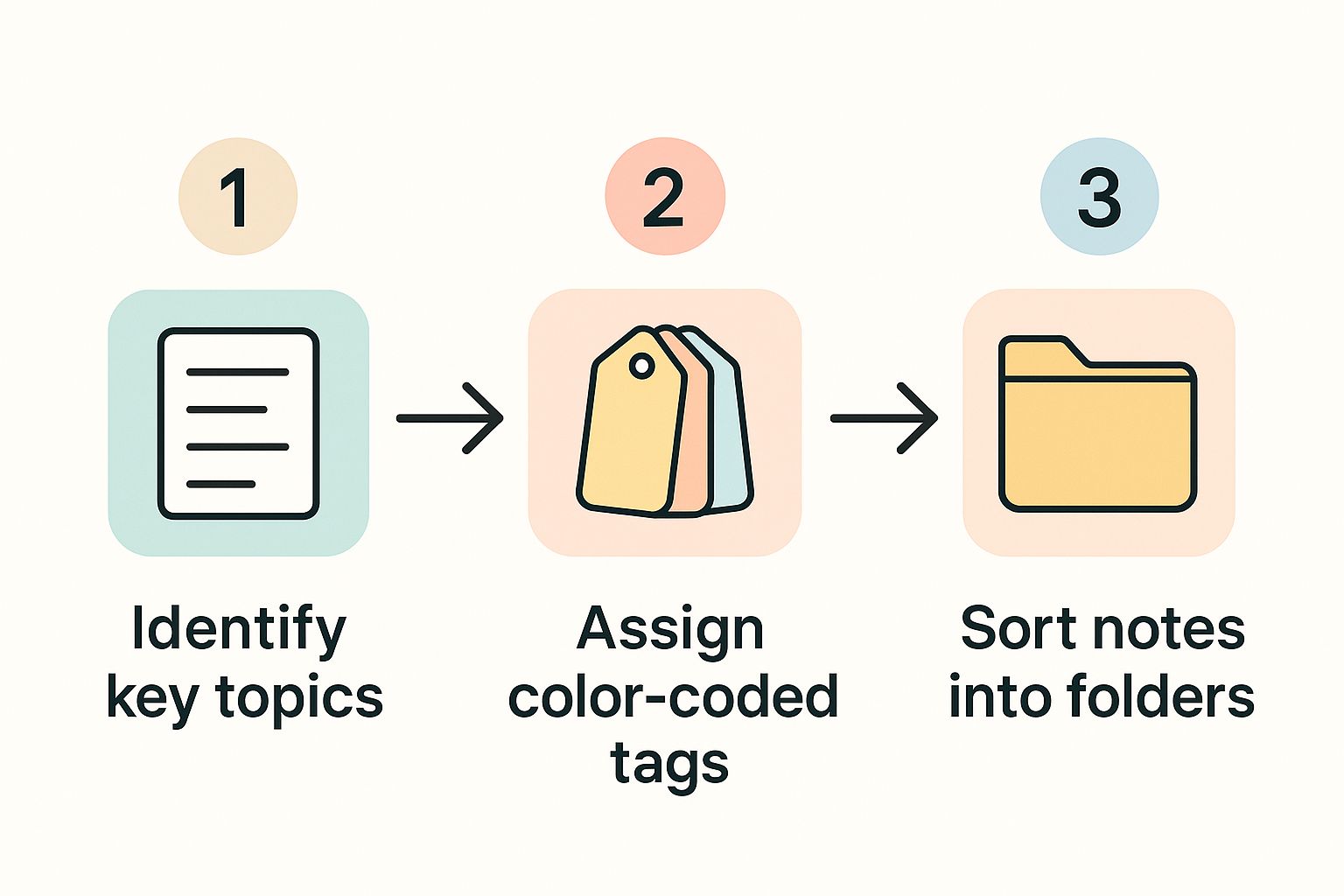
As this infographic shows, getting your notes sorted and tagged from the beginning is the foundational step. When you do this upfront, the jump from passive reading to active studying becomes almost effortless.
Integrating Active Recall Into Your Routine
The real magic happens when you build this workflow into your regular habits. The goal isn’t just to make flashcards; it's to use them effectively. Research has proven time and again that active recall (testing yourself) and spaced repetition (reviewing at increasing intervals) are two of the most powerful learning strategies out there.
The biggest shift for me was scheduling my study time. Instead of cramming for hours, I started blocking out short, 20-minute flashcard sessions in my calendar throughout the week. For example, I'd review my biology flashcards on Monday, Wednesday, and Friday morning before class. This small habit turned my study process from a stressful marathon into a series of manageable, effective sprints.
The PDFFlashcards interface is clean and intuitive, which is crucial. You want to spend your brainpower on learning, not on figuring out complicated software.
As you can see, the layout is straightforward. You upload a document and get right to generating flashcards. This simplicity removes friction and makes you far more likely to stick with your study routine.
A quick tip: The AI works best when your original notes are well-structured. Using clear headings, subheadings, and bullet points helps it zero in on the most important concepts. Of course, this all starts with a solid note-taking technique. If you want to build that foundation from scratch, check out our guide on how to take notes effectively. A little bit of structure from day one makes a world of difference when it’s time to study.
Keep Your System From Turning Into a Digital Junkyard
Let’s be honest. Even the most perfectly designed organization system can fall apart. Without a little regular maintenance, that clean, organized workspace you built in Notion can quickly devolve into the very digital chaos you were trying to escape. The trick is to build simple, sustainable habits that keep your system working for you, not against you.
This isn’t about scheduling a massive, soul-crushing cleanup every few months. It's about creating a small, repeatable ritual to process what’s new, put away what’s done, and sharpen your focus for what’s next. A system you maintain actually serves you. A neglected one just becomes another chore.
The 15-Minute Weekly Review Habit
The secret sauce to my entire system is a weekly review that I never, ever skip. It takes just 15 minutes. Every Sunday evening, I open Notion and clear out my inbox. That's it. This one small habit prevents clutter from ever getting a foothold and guarantees I walk into Monday with clarity. It’s a reset, not a chore.
The only goal is to get my universal inbox to zero. I go through every single thing I clipped, jotted down, or saved over the past week.
Here’s the simple checklist I follow to make it quick and painless:
- Sort the New Stuff: Every note gets a home. For example, a clipped article about marketing goes into my "Resource Library" with a "Marketing" tag. A quick meeting note gets moved to my "Meetings & Lectures Log" and linked to its relevant project.
- Update Project Progress: I take a quick look at my "Projects" database. If something's finished, I mark it as "Done" and get that little dopamine hit.
- Check for Deadlines: A quick scan of my calendar view tells me what’s on the horizon, helping me map out my priorities for the coming week.
This isn't just digital housekeeping. It’s about setting up your future self for success. If you want to know how to organize notes that you'll actually use for years, this kind of consistent check-in is the foundation.
Be Ruthless: The Power of the Archive
One of the sneakiest traps in digital note-taking is the "I might need this someday" mindset. This is how digital hoarding starts, burying your active projects under a mountain of old, irrelevant files. My solution is simple but effective: Archive everything.
Think of the "Archive" in the P.A.R.A. method not as a dumpster, but as cold storage. When a project wraps up or a resource is no longer in active rotation, it gets moved to the archive. It’s out of my way, but still completely searchable if I ever need to pull it back up.
My personal rule is simple: If I haven't actively used a note or project in three months and it's not part of an ongoing "Area" of my life, it goes into the archive. Last semester, once my finals were done, I moved my entire "CHEM-201" and "LIT-304" areas to the archive. My workspace was instantly cleaner and less distracting.
This practice is becoming more important than ever. The AI note-taking market is projected to hit a staggering USD 2.55 billion by 2033, which shows just how much we're relying on smarter tools to manage information. You can read more about the rise of AI in note-taking on Market.us. These AI features work best when they aren't sifting through years of digital junk.
When you pair a consistent weekly review with a ruthless archiving habit, you create a self-cleaning system—one that stays functional, focused, and ready to help you achieve your goals for the long haul.
Got Questions? We've Got Answers
Even with the best system in place, some questions are bound to come up as you get your hands dirty. Let's tackle some of the common things people ask when they start organizing their digital life this way.
How Often Should I Actually Review My Notes?
Consistency is king here. I’ve found that a weekly review is the sweet spot. For me, it’s a 15-30 minute ritual every Sunday night where I go through my inbox, file away notes from completed projects, and get a clear picture of what’s coming up.
Think of it less as a chore and more as hitting a reset button. For example, last Sunday, I processed 12 items from my inbox, archived two completed projects, and planned out my top three priorities for Monday. This simple habit stops the digital clutter before it starts and makes sure my entire system is actually working for me, not against me.
Will the P.A.R.A. Method Work for My Situation?
P.A.R.A. is less of a strict rulebook and more of a flexible guide. It’s fantastic if you're juggling a lot of different projects and roles—think freelancers, managers, or small business owners. But you can absolutely bend it to your will.
When I was a student, for example, I swapped out "Projects" for "Courses." It was the same concept, just with a label that made more sense for my life at the time. A friend of mine who is a novelist uses "Books" instead of "Projects" and "Worldbuilding" instead of "Resources."
The real magic is separating things you need to act on (Projects, Courses) from the stuff you just want to keep for later (Resources). Don't hesitate to rename the categories to fit what you actually do.
Can I Use This Note-Taking System with Other Apps?
Of course. The core ideas—having a central inbox, using structured databases or folders, and doing regular reviews—are not tied to any single app. You can build this exact same workflow in plenty of other great tools.
- Obsidian: Perfect if you love creating a "second brain" with deeply interconnected notes. You can use folders for P.A.R.A. and tags for status.
- Evernote: A classic choice. Use Notebook Stacks for your P.A.R.A. categories and tags to manage project status and topics.
- Microsoft OneNote: A no-brainer if you’re already living and working in the Microsoft ecosystem. Use Notebooks for your Areas and Sections for your Projects.
The app is just the container. The system is what brings the clarity. The trick is to find the platform where these principles just click for you.
Ready to turn those perfectly organized notes into a real study advantage? PDFFlashcards takes your lecture notes and research papers and instantly converts them into interactive flashcards. It’s the missing link between organizing your knowledge and actually remembering it. Get started with PDFFlashcards today and supercharge your study sessions.