

If you've ever tried to study from a dense PDF, you know the struggle. The first step to turning that static document into something you can actually learn from is to extract the text. This means using a tool that can pull the words right off the page, making them editable and ready to be transformed into powerful study aids.
The Challenge of Studying with Static PDFs
We’ve all been there—staring at a 100-page lecture PDF, feeling the pressure mount. It's tempting to just start highlighting everything that looks important, but does that really work? I still remember a brutal late-night cram session for a final exam, my screen a sea of yellow highlights. I spent hours re-reading, but when the test came, my recall was embarrassingly bad.
That night taught me a crucial lesson: passive reading is a trap. It feels like you're working, but the information just doesn't stick. Real learning isn't about passively absorbing content; it's about actively engaging with it. This is where proven techniques like active recall and spaced repetition come in.
From Passive Reading to Active Learning
Active recall is the simple act of trying to remember information without looking at your notes. This process forces your brain to build and strengthen the neural connections that lead to long-term memory. Spaced repetition complements this by having you review that same information at gradually increasing intervals. When used together, they're a knockout combination for making knowledge permanent.
The big problem? PDFs are fundamentally passive. They were designed to be digital paper, not interactive learning tools. Trying to turn a highlighted passage into a question-and-answer flashcard is a clunky, manual process that eats up valuable study time. For example, you find a key definition: you highlight it, copy it, switch to your flashcard app, paste it, format it, then switch back to the PDF and repeat. It's exhausting.
The core issue is that traditional PDFs lock valuable knowledge in a read-only format. Breaking that information free is the first step toward building an effective, modern study system.
The scale of this problem is massive. Over 2.5 trillion PDFs are created every year, and with 90% of organizations using them to share information, it's clear we need a better way to work with them. It's no surprise that the market for PDF data extraction tools has shot up by 50% recently.
Before we dive into the "how," let's look at why this shift from passive to active learning is so critical.
Effectiveness of Popular Study Methods
| Study Method | Learning Type | Typical Retention Rate |
|---|---|---|
| Re-reading / Highlighting | Passive | 5-10% |
| Summarizing | Passive | 20-30% |
| Flashcards (Active Recall) | Active | 70-80% |
| Practice Testing | Active | 75-90% |
As you can see, the methods that force your brain to work for the information are worlds apart from just re-reading.
Making the Shift
To make your study time truly count, you need a workflow that bridges the gap between your static PDF and an active learning system. The goal is to stop highlighting and start creating interactive study aids that genuinely boost your comprehension and memory.
This is exactly where a tool like PDFFlashcards changes the game. It provides a direct pipeline from your PDF lecture notes to your digital flashcards. Instead of getting stuck in a frustrating cycle of re-reading, you can build a study system that aligns with how your brain actually learns best. Our guide on how to extract PDF content breaks down the initial steps in more detail.
Your New High-Efficiency Study Toolkit
To really level up your study game, you need a system that just works. It's less about finding a single magic app and more about getting the right tools to talk to each other. When you can automate the soul-crushing grunt work, you free up your brain to focus on what actually matters: learning the material.
This is where a killer combo of two specific tools comes into play.
First up is PDFFlashcards. Full disclosure, I built this tool myself to scratch a major itch—getting information out of static PDFs and into a useful, dynamic study format. It’s a simple Chrome extension designed to be a bridge, letting you extract text from a PDF and instantly turn it into a flashcard, all without leaving your browser. Say goodbye to the endless cycle of copy, paste, and reformat.
The second piece of the puzzle is Notion. Chances are you've heard of it, or maybe you're already using it for notes. But its true strength is its incredible flexibility. Think of it less like a digital notebook and more like a personal workspace—a "second brain" you can customize for anything. That adaptability is exactly what we need for this workflow.
The Perfect Partnership for Active Recall
So, what makes this duo so powerful? PDFFlashcards does the heavy lifting of pulling out the information, and Notion gives that information the perfect home for studying. The secret sauce is Notion's simple but brilliant toggle list feature.
Here’s how it looks in practice:
- Question on the Outside: The question you pull from your PDF becomes the visible part of the toggle. For example,
▸ What is the primary function of the mitochondria? - Answer on the Inside: The corresponding answer gets tucked away inside, hidden until you click. For example,
To generate most of the cell's supply of adenosine triphosphate (ATP), used as a source of chemical energy.
This simple setup perfectly mimics a physical flashcard. It forces you to engage in active recall, making you pause and actually think of the answer before you reveal it. That small action is what turns a page of passive notes into a powerful, interactive study deck.
The core idea here is to let smart technology handle the boring, repetitive tasks. This frees up your mental bandwidth for the high-value work of critical thinking and actually committing things to memory.
This whole system is built for speed. Instead of spending hours tediously creating flashcards by hand, you can generate a complete study set directly from your source material in minutes. It's all about turning passive reading time into productive learning time.
Getting Your Tools Synced Up
Alright, let's get your setup dialed in. The real magic happens when your tools work together, creating a seamless bridge from your PDF right into your Notion workspace.
This initial setup only takes a few minutes, but it’s the key to saving hours of tedious copy-pasting later. We're essentially building a direct pipeline so that when you extract text from a PDF, it lands exactly where you need it, already formatted for studying.
First, Install the PDFFlashcards Extension
The heart of this system is the PDFFlashcards Chrome extension. This little tool does all the heavy lifting for you.
- Get the extension: Head over to the Chrome Web Store and search for "PDFFlashcards," or just use this direct installation link.
- Add it to Chrome: Click the "Add to Chrome" button. You’ll see a pop-up asking for permission, which is standard—it just needs to be able to read the PDF content you have open in your browser.
- Pin it for quick access: This is a small but important step for your workflow. After installing, click the puzzle piece icon in your Chrome toolbar. Find PDFFlashcards in the list and click the pin icon next to it.
Pinning the extension keeps it visible and ready to go. You want it just a click away so you don't break your focus when you’re deep in a study session.
Next, Prep Your Notion Workspace
Now, we need to create a dedicated home in Notion for all your new flashcards. You've got a couple of options here: use a ready-made template or just start with a blank page.
When I first started doing this, I just threw everything onto a blank page with a bunch of toggles. It worked, but it got messy fast. A good template really helps keep things organized from the get-go.
Option 1: Use the Pre-Built Template (My Recommendation)
For the fastest and most organized start, I've put together a simple, clean flashcard template.
- You can grab the free PDFFlashcards Notion Template here.
- Once you open the link, just click the "Duplicate" button in the top-right corner. This will copy the entire template right into your personal Notion workspace.
Option 2: Make Your Own Page
If you'd rather build from scratch, that's perfectly fine too.
- Simply create a new page in Notion.
- Give it a clear name, like "Medical Terminology Flashcards" or "History 101 Notes."
The extension is smart enough to work with any Notion page you have edit permissions for. It will automatically create the toggle-style flashcards for you.
The key takeaway here is to pick one central page for your flashcards. This will be the destination where PDFFlashcards sends every single highlight you capture.
Finally, Link the Extension to Notion
This is the last piece of the puzzle: connecting the extension to your chosen Notion page. It's a one-time thing that tells the extension where to send your flashcards.
Just click the PDFFlashcards icon you pinned to your toolbar. You'll see a prompt to connect to Notion. Follow the on-screen steps to authorize the connection and then select the specific flashcard page you just set up.
And that's it! Your system is now live. You've successfully built a direct workflow to extract text from PDF documents online and turn those key insights into powerful study tools in Notion.
How to Extract Text and Build Flashcards Fast
Alright, now that you've got everything connected, we get to the good stuff—actually turning that dense PDF into a streamlined study deck. This is where the magic happens. We're going to ditch the old-school, tedious copy-and-paste routine for a workflow that's all about speed and efficiency. The goal here is to extract text from a PDF and build your flashcards in one smooth, intuitive motion.
I'll never forget the first time I tried this on a beast of a chapter about cellular respiration. A task that would've normally eaten up my entire afternoon was done in less than 30 minutes. That was a real lightbulb moment for me, realizing just how much time I'd been wasting before.
This simple flow shows you just how quickly you can get from a static document to a set of active study notes.
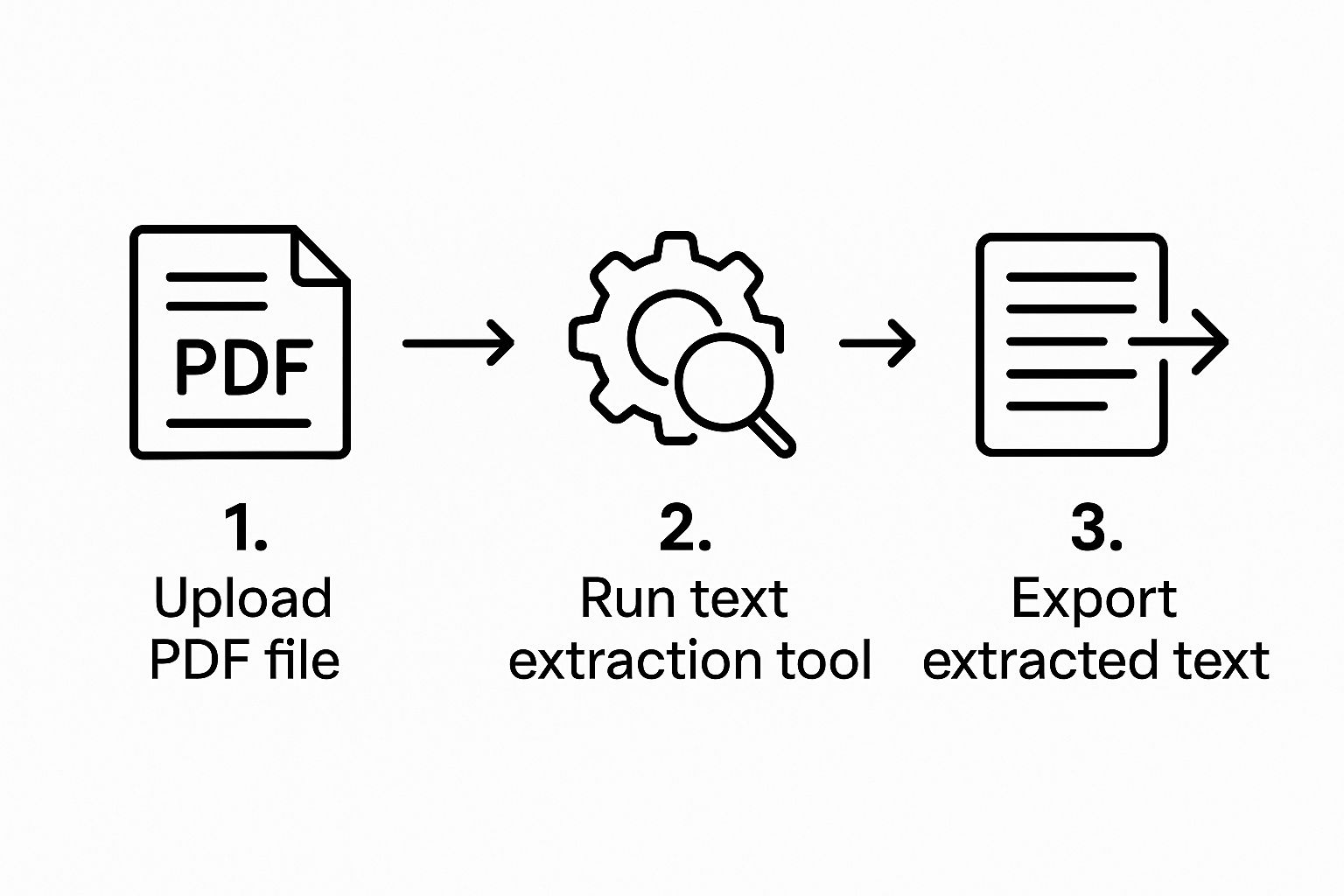
As you can see, it's really just a three-part journey: upload the document, extract the key info, and then export it. This is the core of what makes this study method so fast.
Firing Up the Workflow
To get started, just open your PDF right in your web browser. It doesn't matter if it's a file saved on your computer or one you found online. Once it's loaded up, click on the PDFFlashcards extension icon that you pinned to your toolbar. This will pop open the extension's sidebar right next to your document, ready for action.
What I love about this is that your source material and the tool you're using to create your notes are right there, side-by-side. No more flipping between different windows and apps, which is a huge help for staying focused and in the zone.
Crafting High-Quality Flashcards
Now for the fun part: strategically pulling out the content. The secret to great flashcards isn't just grabbing big chunks of text. An effective flashcard drills down on a single, testable idea.
Over the years, I've learned a few things about making flashcards that actually help you learn:
- One Idea Per Card: Don't cram multiple facts onto one card. If you're studying the parts of a cell, for example, make one card for the nucleus, another for the mitochondria, and so on. Keep it focused.
- Frame it as a Question: Instead of just copying a definition like "Photosynthesis is the process by which plants use sunlight," highlight the term "Photosynthesis" for the front, then frame the back as a question: "What is the process by which plants use sunlight?" This forces you to actively recall the information.
- Context is Key: Sometimes a single term doesn't make sense on its own. It's okay to highlight a short introductory phrase to give your main point some context.
The process itself couldn't be simpler. Highlight the text you want for the "front" of your flashcard (the question or term). Then, right after, highlight the text for the "back" (the answer or definition). The extension automatically pairs them up and adds the new flashcard to your list in the sidebar.
The goal is to move through the document with purpose, plucking out key concepts and turning them into question-and-answer pairs. Each pair you create is another step toward mastering the material.
You’ll see your list of flashcards grow in the sidebar as you work. You can create as many as you need and even review them right there before sending them over to Notion.
The One-Click Export to Notion
Once you've worked through your document and captured all the essential info, the last step is just a single click. At the bottom of the PDFFlashcards sidebar, you'll find a button labeled "Send to Notion."
Click it, and everything happens automatically. The extension takes your entire list of flashcards and sends them directly to the Notion page you set up earlier. Each card is perfectly formatted as a toggle list, with the question visible and the answer hidden inside. No manual formatting, no copying, no pasting. In seconds, that static PDF is now a dynamic, interactive study deck.
For more tips on organizing your digital notes, check out our guide to create flashcards from a PDF.
Advanced Strategies to Maximize Your Learning

Okay, so you've got the basic workflow down. But if you really want to get the most out of this process, there are a few next-level tactics I use to supercharge my study sessions. Moving beyond just grabbing text opens up a world of possibilities for deeper learning and better organization.
Let's face it, not all PDFs are created equal. Some academic papers or dense reports are formatted in multiple columns, which can make a mess of your text selection. Here’s a pro tip I swear by: before you start highlighting, check if your PDF reader has a "single column view" or "reflow" mode. This little feature linearizes the text, making it a breeze to extract text from a PDF without accidentally grabbing bits and pieces from the next column over.
This kind of automation is a big deal. The technology behind it, Intelligent Document Processing (IDP), is exploding, with some projections showing the market could hit nearly USD 17.8 billion by 2032. It just goes to show how many people are looking for smarter ways to pull information out of documents.
Supercharge Your Notion Organization
Don't just dump all your flashcards onto a single Notion page. That's a recipe for chaos. What I do is create a main toggle for each course or subject, and then nest more toggles inside for individual chapters or lecture topics.
Here’s a practical example of how this looks in my Notion:
▸ Biology 101
▸ Chapter 1: The Cell
▸ What is the function of the ribosome?
▸ Chapter 2: Genetics
▸ Define "allele".
Why bother? This structure lets me:
- Study in focused blocks. I just open the toggles for the chapter I'm reviewing that day. No distractions.
- Find information quickly. No more endless scrolling through hundreds of cards to find that one specific concept.
- See my progress at a glance. The main toggles give me a high-level overview of what I've covered.
Incorporate Visual Learning
Sometimes, text just doesn't cut it. For complex diagrams, flowcharts, or tricky formulas, a picture is absolutely worth a thousand words. I highly recommend taking screenshots of these key visual elements from your PDF.
You can paste the screenshot directly into the "answer" side of your Notion toggle. This creates a powerful visual cue that connects abstract concepts to a concrete image, which is a game-changer, especially for my friends in STEM fields.
A well-organized flashcard deck is more than just a collection of facts—it’s a personalized knowledge base. By combining text, visuals, and smart organization, you build a tool that adapts to your unique learning style.
Build a Spaced Repetition Habit
The final piece of the puzzle is building a consistent review habit. While Notion doesn't have a built-in spaced repetition system like Anki, you can easily rig up a manual version.
Here’s my simple tagging method. I add a "Review Status" property to my flashcard database with tags like "New," "Learning," and "Mastered." Every day, I set aside just 15 minutes to run through cards tagged as "New" or "Learning." It’s a low-effort, high-impact way to make sure you're constantly revisiting the material, which is the key to locking it into long-term memory.
A Few Common Questions About Extracting PDF Text
When you first start pulling text from PDFs to make flashcards, a few questions always seem to come up. Getting a handle on the "why" behind the process can save you a lot of headaches and help you get better results. Let's dig into what most people ask.
Will This Work on Every Single PDF I Have?
This is the big one. The short answer is: it depends on how the PDF was made. This method is flawless for text-based PDFs. Think of lecture slides from your professor or a modern digital textbook—if you can click and drag your cursor to highlight the words, you're good to go.
The hiccup happens with image-based PDFs. These are basically just pictures of pages, like a scan from an old book. Since there's no actual text data to grab, the extension can't read it.
The fix is simple, though. You just need to run the file through an Optical Character Recognition (OCR) tool first. Plenty of PDF editors and even free online converters can do this. OCR scans the image, recognizes the letters, and turns them into real, selectable text that PDFFlashcards can then work with.
Is Notion Going to Limit How Many Flashcards I Can Make?
It's natural to worry about hitting a wall, especially with free tools. But the good news is Notion's free plan is more than enough for this. Each flashcard is just one "block," and you get thousands of those. Honestly, you'd have to be creating an absolutely massive library of cards to even get close to the limit.
It's also worth pointing out that PDFFlashcards has zero limits on the number of flashcards you can create. The tool itself will never stop you from making as many as you need for your studies.
How Is This Any Different Than Using Anki?
I get this question a lot, especially from long-time students. Anki is an incredible tool, specifically designed for spaced repetition. But it can also feel a bit clunky, and its learning curve is notoriously steep.
The PDFFlashcards to Notion workflow is all about speed and integration. You're not exporting a file, opening another program, and then importing it. You're pulling insights directly from your reading material and dropping them straight into the same place you keep all your other notes. It’s seamless.
While Notion doesn't have a built-in automated spaced repetition system like Anki, you can easily create your own simple review schedule. This approach is perfect if you value having everything—your readings, notes, and flashcards—all in one clean, familiar workspace.
Ready to stop wasting time with manual copy-pasting and start building smarter study notes in minutes? Try PDFFlashcards today and see how easy it is to turn any PDF into an interactive Notion flashcard deck. Get started for free at https://pdfflashcards.com.